KNOWLEDGE
Protect Your Parents From Fake Sites: Set It Up Once During a Visit
In short
You can set up a filter on your parents' router that blocks known fake sites, of the kind scammers often dress up as bank or parcel pages. It takes about 30 minutes, costs nothing with AdGuard's free standard filter, and needs no upkeep afterwards. It doesn't help against phone calls or messages, nor against brand-new fakes, and it only works on the home Wi-Fi.
Disclosure: We sell the Internet-Schutzschild guide. It contains the router steps for Fritz!Box, Speedport, EasyBox and O2 and a box for households without children. The addresses themselves are public and free.
Get Internet-SchutzschildWhat you can do today
- Ask your parents before the visit whether you can have half an hour at the router, and ask them to have the router password ready.
- First check in ten seconds how your own connection is protected right now. To the protection check
The email looks like it's from the bank. The text message claims to be from DHL. Fake sites like these are often hard to tell from the real thing. Your parents just have someone look over their shoulder less often.
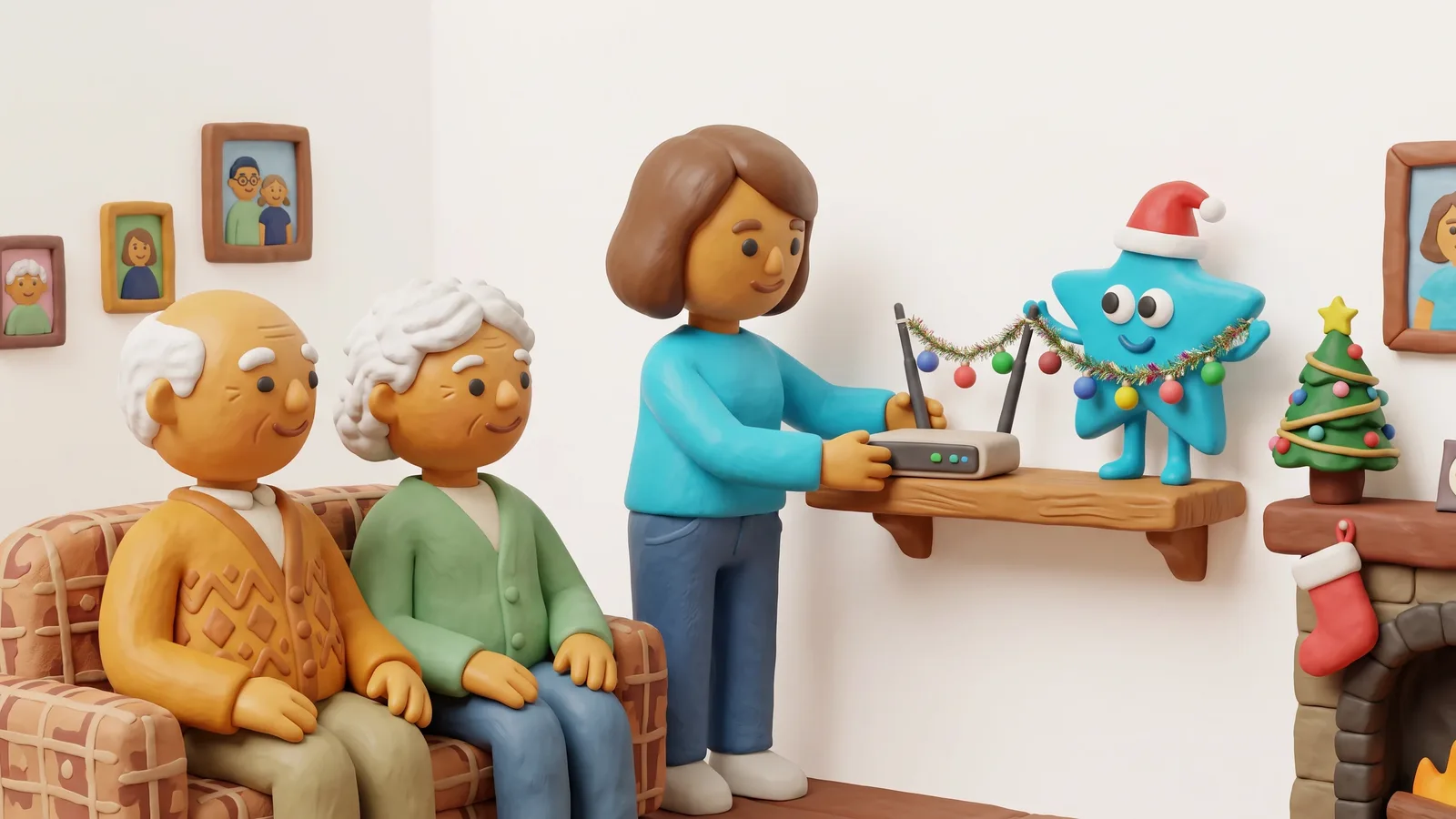
At Christmas you're at their place. That is your chance: about 30 minutes at the router, set up once, no upkeep afterwards. This article shows what the filter can do, what it can't, and how the visit goes.
What the filter does
A filter service is like a doorman for web addresses. Every time a device wants to open a page, it first asks for the address. The filter service knows lists of known fake sites and answers for those: "That doesn't exist." The page never loads.
You set it up once, on the router. After that it applies to the devices on your parents' Wi-Fi that get their settings from the router: phone, tablet, laptop, TV. Nothing needs to be installed on the devices, and grandma doesn't have to operate anything.
What we measured
On 11 November 2026 we tested the standard filter from AdGuard, an external filter service, from a neutral network. Its addresses are 94.140.14.14 and 94.140.15.15.
| Check | Result |
|---|---|
| Fresh fake sites (OpenPhish list) | 38 of 39 blocked |
| Ad networks (sample) | 7 of 9 blocked |
| Trackers | 2 of 5 blocked |
| Normal sites (Sparkasse, Postbank, DHL, web.de, tagesschau.de, amazon.de …) | 8 of 8 reachable |
| Adult sites | not blocked |
This is a snapshot with a small sample, not a study. In this sample the filter blocked almost all known fake sites, and all eight normal sites we checked stayed reachable. We measured nothing on viruses and malware, so we say nothing about them.
What the filter can't do
This is part of the honest answer, and for your parents it matters more than any technology:
- It doesn't help against fraud by phone or messenger. The shock call ("Your grandson had an accident") and the "Hi Mum" message don't come through a website. Only a conversation helps there. Agree a family code word and this rule: when money is asked for, always call back first, on the number you know.
- It only knows what is on a list. A fake that went online yesterday can still slip through. In our measurement that was one of 39.
- It only works on the home Wi-Fi. It doesn't apply on mobile data or on someone else's Wi-Fi.
- Devices with their own address setting bypass the filter. If iCloud Private Relay is on, for example, the iPhone asks past the router.
That's why our advice has two parts: set up the filter, and have a short conversation during the same visit. The filter catches many fakes. The conversation helps with the rest.
How to put it to your parents
It helps if it sounds like a gift, not an exam. For example: "We set up a protection at our place that blocks fake sites. Do you want it too? It takes about half an hour and you won't notice it afterwards." If your parents say no, that's fine. Leave it. The filter only works if they want it.
In detail
Standard filter or family filter?
AdGuard has two variants. For parents without children in the household, the standard filter is usually the right one.
| Feature | Standard filter | Family filter |
|---|---|---|
| Addresses | 94.140.14.14 and 94.140.15.15 | 94.140.14.15 and 94.140.15.16 |
| Known fake sites | blocked | blocked |
| Adult sites | not blocked | blocked |
| Safe search | not enforced | enforced |
| Fits | households without children | households with children |
On a visit to your parents this is about fraud sites, not adult content. Talk it through with them briefly. Nobody at 75 wants the feeling that someone is interfering with their internet. Put it like this: "This only blocks known fakes. Everything else works as before."
The visit: a 30-minute checklist
Ask your parents or bring along beforehand:
- Router password. It's usually on a sticker on the device. If it was changed once, often only the person who set up the connection knows it. Ask beforehand.
- Phone number of the provider (Telekom, Vodafone, O2, 1&1). If something goes wrong, you can reach support.
- Your phone for a photo of the old setting. Take a screenshot of the page before you change anything. Then going back takes a minute.
- The two addresses (standard filter), written down or as a note on your phone.
- A quiet half hour. Not between the goose and dessert.
On site:
- Connect to your parents' Wi-Fi and type the address from the router sticker into the browser's address bar. On the Fritz!Box it is usually fritz.box.
- Log in with the router password.
- In the menu, find the setting for the name service. That is the internet's phone book that looks up addresses, DNS for short. Enter the two addresses of the standard filter there. The exact menu paths for Fritz!Box, Speedport, EasyBox and O2 are in our guide. If the router also has fields for IPv6, enter 2a10:50c0::ad1:ff and 2a10:50c0::ad2:ff there, otherwise queries can go around the filter.
- Save. Some routers need a minute before the setting applies.
- On your parents' phone, open a known site, such as tagesschau.de. If it loads as usual, nothing has broken.
That's it. No account, no upkeep. Only after a router reset do you enter the addresses again.
If you want to use the router guide
The addresses are public. If you find your way around a router, you can enter them without us. If you want the menus for Fritz!Box, Speedport, EasyBox or O2 step by step in front of you, you'll find them in the Internet-Schutzschild. It also includes the box "Variant for adults without children in the household" with the two addresses of the standard filter. For your own household without children: Block fake sites at the router.
Sources and status (measurement on 11 November 2026)
The basis is our own measurement on 11 November 2026 from a neutral network, via encrypted queries to the AdGuard servers. Fake sites: 39 fresh addresses from the OpenPhish list. The sample is small and a snapshot, not a study. Results can differ for you and at other times. Menus and router versions differ; check the steps in your version. Next review: February 2027.
Your Internet-Schutzschild: Set up in about 30 minutes.
Which settings you need, how to configure them on Fritz!Box, Speedport and other routers, and how to set up protection profiles by age — step by step, no jargon.
Get Internet-SchutzschildMore visibility over your home network?
A local filter in your home network protects all devices at once — smart TVs, consoles, and guest Wi-Fi included.
View NUNIVIA Home-Guide